
Cameras
Lens, focus, the Camera panel, player cameras and tuning while you play.
The Camera component
A camera in Omnion works like a Cine Camera in Unreal. Add one from Create → Cameras & Helpers or from Place Actors. Details groups everything about the picture under Lens.
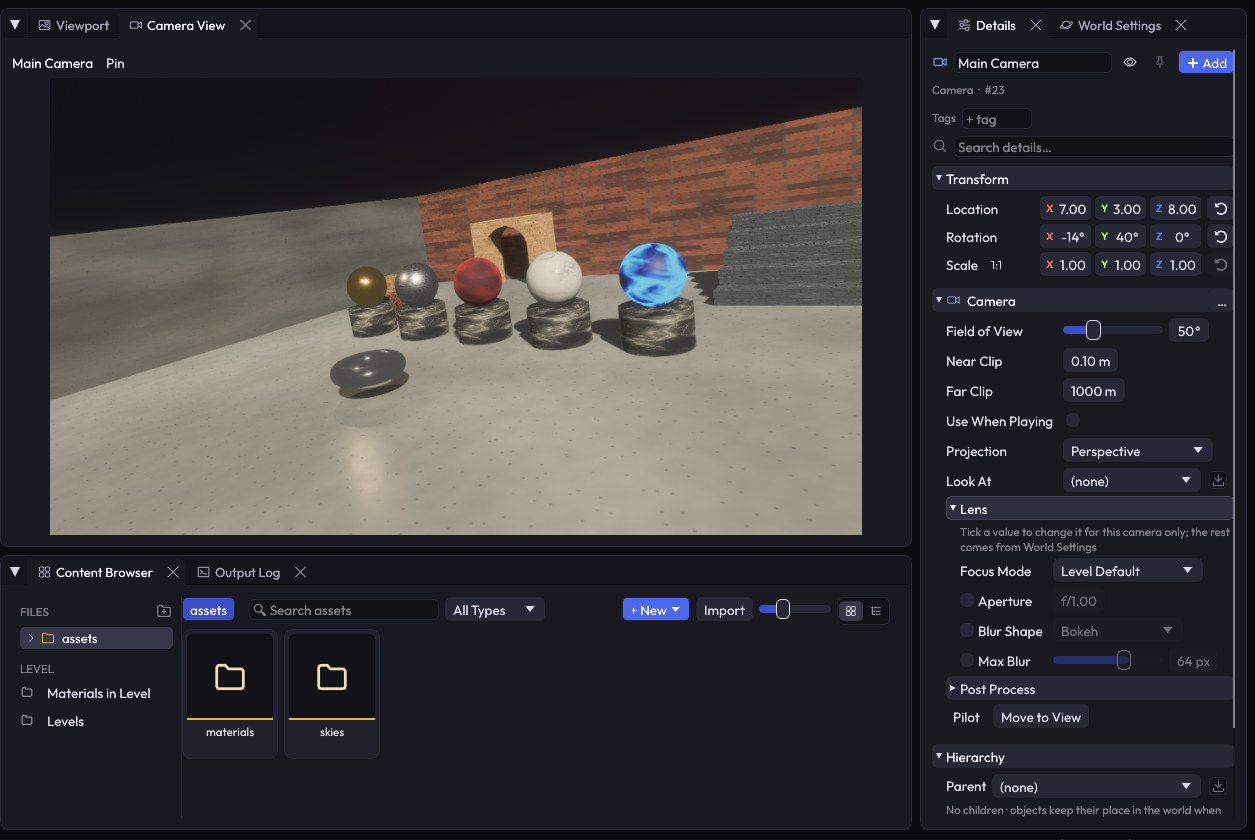
Focus Mode
Focus lives in Lens, next to what it depends on:
| Mode | What it does |
|---|---|
| Level Default | Uses the depth of field of World Settings |
| Off | Everything is sharp |
| Manual | You set the Focus Distance |
| Track Object | Keeps the object you choose in focus as it moves |
The camera’s own look
A camera can override the level’s exposure, bloom, color grading and lens distortion. Set them once on each camera and the picture changes when you cut to it.
See what the camera sees
Select a camera and a small view appears in the viewport. Pin it to keep it there, or make it bigger.
You can also open the Camera View panel from Window. It’s a normal tab: dock it next to the viewport, or move it to another monitor.
Pilot looks through a camera and carries it with you as you fly, which is the fastest way to frame a shot.
Which camera the game uses
- With a Player, the game looks through the player’s camera.
- Without one, it uses the camera marked as active.
- In a sequence, Camera Cuts decides.
The player’s camera
Adding a Player Controller also adds a camera as a child of the object, so it’s a normal object in the Outliner. Select it to change its lens, its position or anything else. Duplicate the player and the copy gets its own camera.
Tune while you play
Press Play and change Camera, Movement or Player Controller settings in Details. You see the result right away, without stopping the game.
Those changes last until you press Stop. To keep them, click Keep Changes in the note at the top of Details: they go into your level, and you can undo them.
Other components can’t be edited during Play yet.