
Cinematics
Cut between cameras, animate the lens, fade to black and render your sequence.
Omnion’s cinematic tools work like Unreal’s Sequencer. Everything lives in the Timeline, inside a sequence asset, so a cutscene is a file you can reuse, version and play from logic. New to the Timeline? Start with Animation and the Timeline.
The fastest way to see all of this working is the Cinematic template in the launcher: two shots of a lit stage with a hard cut, a zoom, a focus pull, fades and cinema bars.
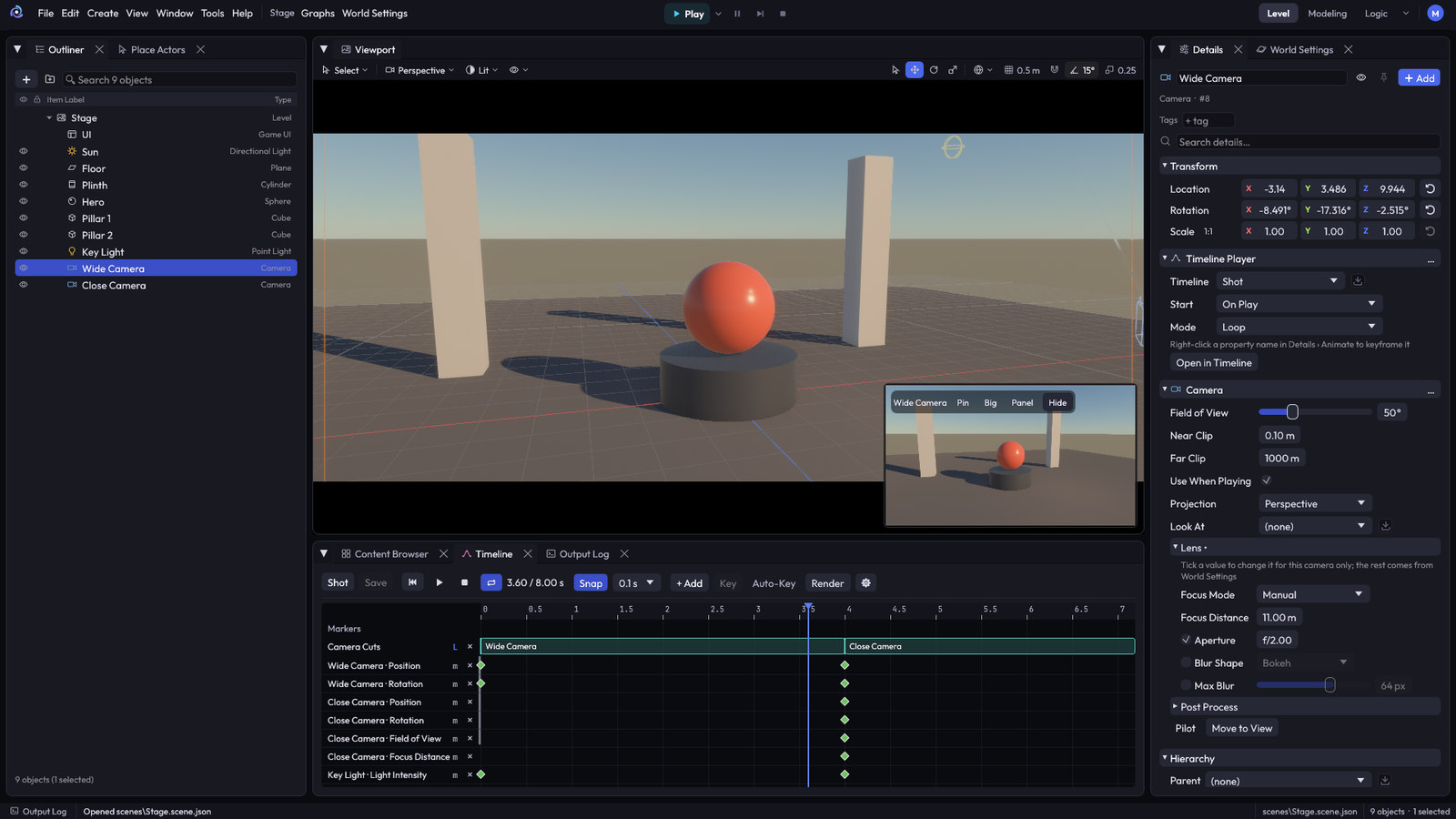
Camera Cuts
Camera Cuts is the row that decides which camera you see at each moment.
- Click + Add in the Timeline and choose Camera Cuts, or drag a camera from the Outliner onto the row.
- Drag a shot to move it. Right-click it to choose another camera.
- Press Play: the view cuts between shots with no blending, and no ghosting from anti-aliasing or motion blur.
While you scrub, the viewport looks through the camera of the current shot. Click the lock to let go of it and move around freely. The same cuts play in the game.
Animate the lens
Add Field of View and Focus Distance tracks from + Add on any camera. They work like every other track: keys, curves, Auto-Key and a number field in each key’s menu.
When you stop, the camera goes back to the value it has in the level.
Fades and cinema bars
- + Add › Fade In (from black) and Fade Out (to black) add a fade with two keys, ready to drag.
- Letterbox adds cinema bars that slide in at the playhead. A value of 1 gives a 2.39:1 frame.
Render
Render in the Timeline exports the sequence as one image per frame. You choose the size, frame rate and folder; by default it’s Renders/<sequence> in your project.
Frames are rendered at a fixed step, so a slow computer gets exactly the same result as a fast one. It shows what the Timeline shows: physics and game logic don’t run while it renders.
Coming in the next release: rendering straight to an MP4 video with sound.
Play it in your game
play_sequence("Shot");
Use the Play Sequence node in a logic graph, or the Animator component on an object. Markers fire events that logic can listen to, so a door can open exactly when the camera gets there.
Tips
- Keep one sequence per scene of your story and play them one after another from logic.
- Add cameras with Create → Cameras & Helpers and frame each shot with Pilot: the viewport carries the camera with it.
- Use Focus Mode → Track Object on a camera to keep a character sharp without keying the distance. See Cameras.